%20250px.png)
Ricoh - changing default colour/b&w setting
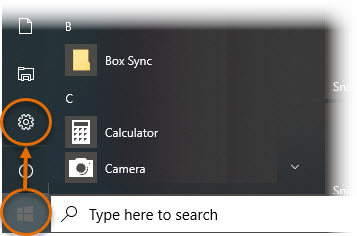
- Open Windows Settings by clicking the Windows Start icon, typically located at the bottom left corner of your desktop. Then click the Settings (gear) icon.
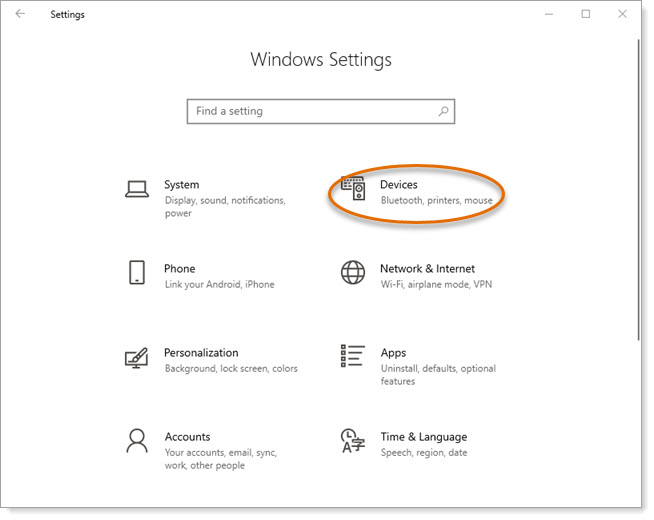
- On the Settings menu, click Devices.
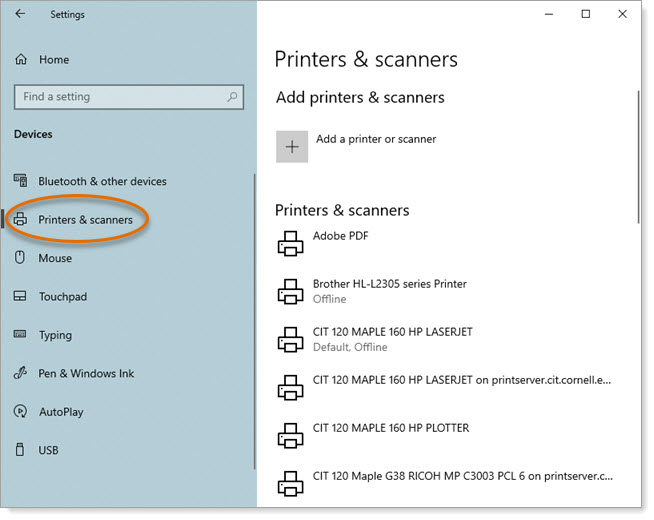
- Click Printers & scanners.
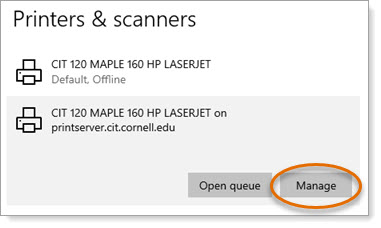
- From the list of installed printers, click the name of the printer you want to set up. This expands the listing to give more choices. Click Manage.
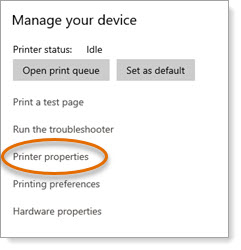
- At the manage your device screen, click Printer properties.
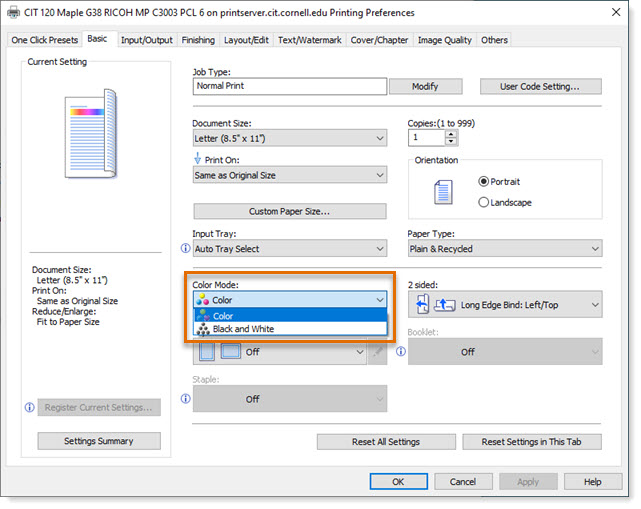
- Click Preferences.
- On the Basic tab, click the Color Mode dropdown, and choose either Color or Black and White.
Click OK to save.